Building a session
Go from a blank page to a full, balanced session, then shape it exactly how you want.
Start a new session
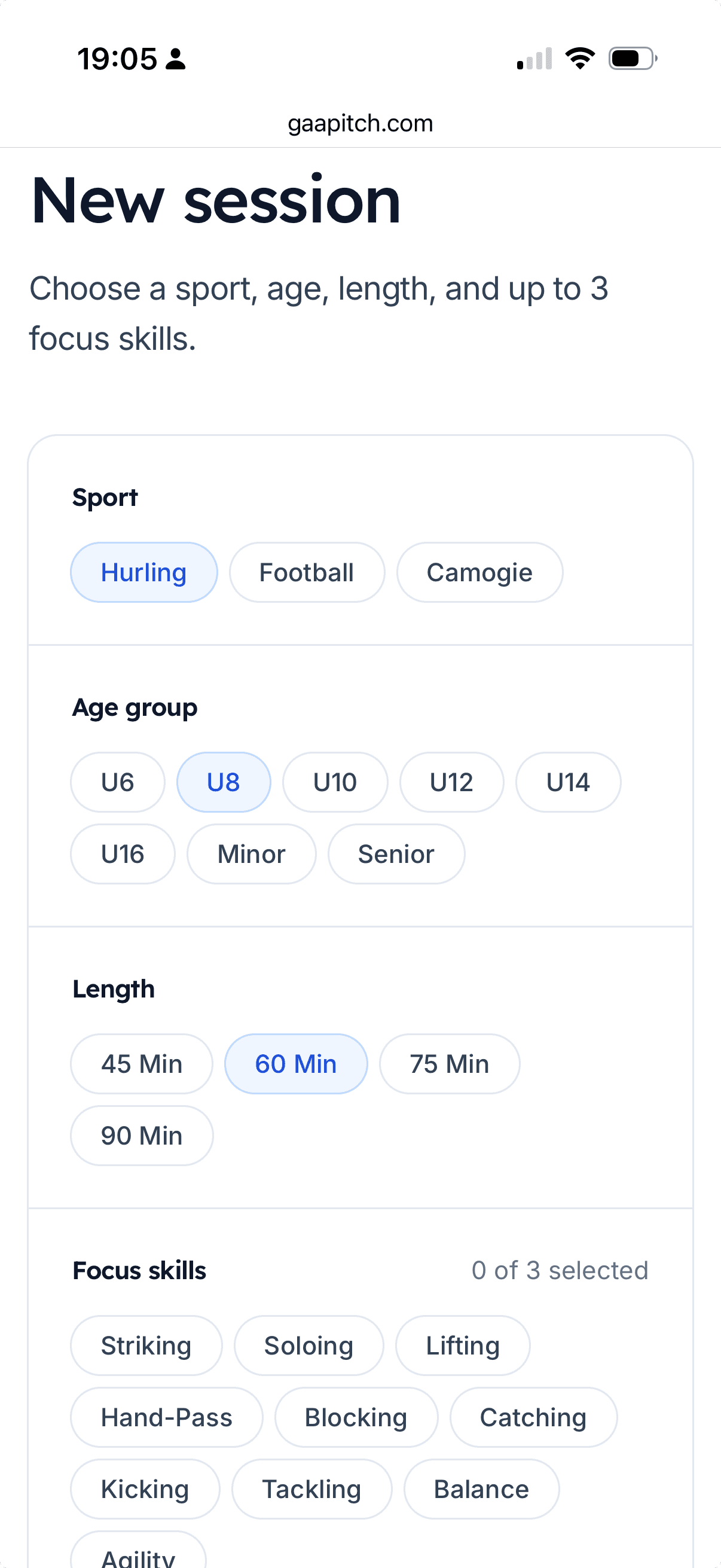
From the home page or the menu, choose New session. You’ll be asked a few quick questions:
- Sport — hurling, camogie, football, or ladies football.
- Age group — so drills suit the players you coach.
- Length — the total time you have for training. Pick a preset or choose Other and type your own.
- Focus skills — up to three things you want to work on. GAA Pitch weights the session towards them.
Warm-up and cool-down blocks are included by default (five minutes each). You can untick them if you don’t want them.
What you get
GAA Pitch builds a full session: a warm-up, a few skill stations, a small-sided game, and a cool-down. Each drill block shows its duration, a pitch diagram, and coaching points. The durations add up to the length you asked for.
Prefer to start from scratch? Choose Create empty and add every block yourself.
Manage the drills
Open a saved session to shape it. Each block has a small toolbar, so you can:
- Swap — replace a drill with another from the library that fits the same slot.
- Add a drill — pull in any drill from the library.
- Add other — a free-text block for anything not in the library (a run, stretching, a drill of your own), with a name, notes, and a duration.
- Reorder — move a block up or down the running order.
- Remove — drop a block you don’t need.
Timings
Every block shows a duration you can edit on the spot. The planned total at the top adds up as you go, so you can see the session still fits the time you have.
Lock a block
Lock a block to pin it: a locked block won’t be moved or have its time changed. If you try to move another block past a locked one, the locked block gives a little shake to show why it won’t budge. Unlock it to free it up again.
Lay it out on the pitch
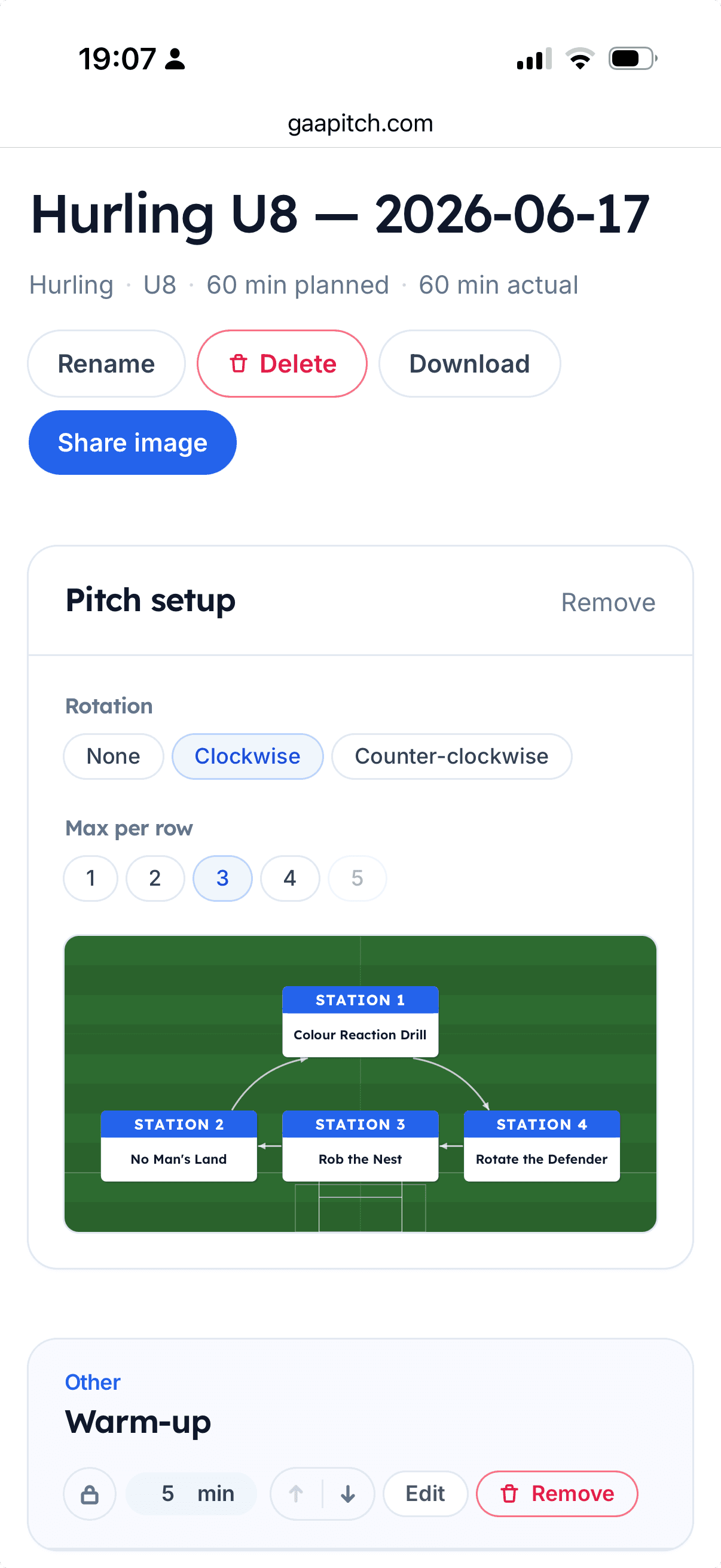
Choose Add pitch setup to place your drill blocks onto a single pitch diagram as numbered stations, so everyone can see where each drill runs. The same diagram appears on the exported sheet. Two controls shape it:
- Rotation — none, clockwise, or counter-clockwise. A rotation adds arrows showing players the order to move through the stations, wrapping back to the start at the end.
- Max per row — how many stations sit side by side before the next row starts, from one up to five. Options that wouldn’t fit your number of stations are greyed out.
By default only drill blocks appear as stations. To put an Add other block on the pitch too, for example a warm-up or a match, tick Show on the pitch when you add or edit it. It then takes its own numbered station in the rotation.
Save it
Save the session to open it again on any device. The free plan keeps up to five saved sessions at a time. When you’re happy, export the session to print or share it — see sharing & exporting. To give it a training date and see it alongside the rest of your season, see season planning.
With Coach
- Unlimited saved sessions — keep a full season’s worth of plans, with no five-session cap.
- Edit a drill for one session — tweak a drill’s name or coaching points for a single session without changing it in the library. On the free plan the edit pencil is there but locked.
- Convert an “other” block to a drill — turn a free-text Add other block into a proper, reusable drill: its text is sent straight into the drill creator as a head start. Nothing is saved until you finish and save it there.
- Branded, PDF-ready exports — the sheet carries your club crest and colours and can export as a PDF. See sharing & exporting.
See pricing for what’s included.